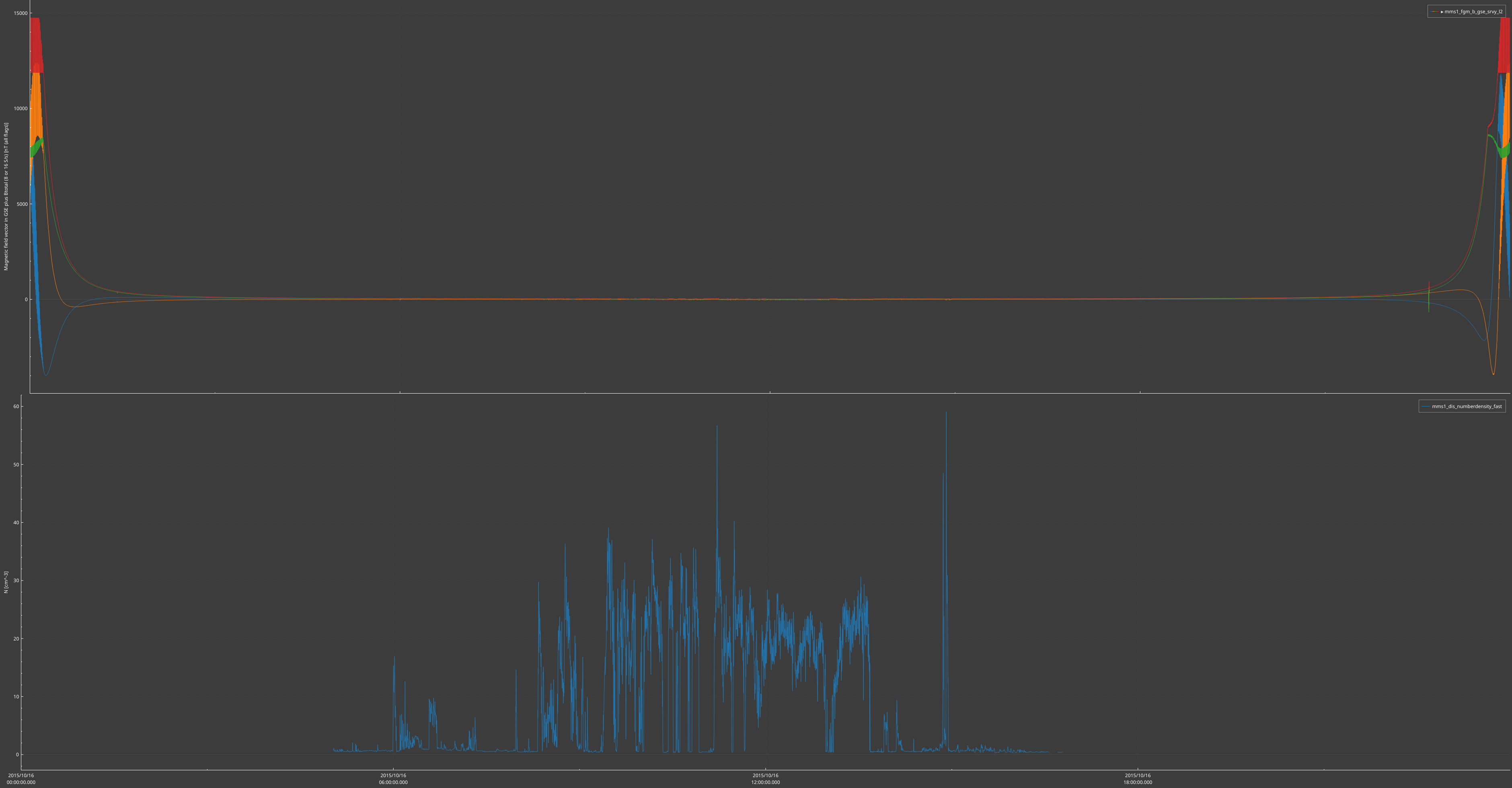
You have a panel you like. Now you want the same panel for every day of a month, as PNG files.
Batch mode does that. You write a short Python script, and SciQLop runs it with no window:
uvx sciqlop --batch quicklook.py 2015-10-16
SciQLop starts, runs the script, and exits. There is no display to open, so it also runs over SSH, in a
container or from a cron job.
Next release
Batch mode ships with the next SciQLop release, after v0.14.1.
The script uses the same Python API as the notebooks. If you can make the plot in a notebook, you can
make it in batch.
Running SciQLop with uv
You don’t need to install anything but uv. uvx fetches SciQLop from PyPI,
keeps it in its cache, and runs it:
uvx sciqlop --batch quicklook.py 2015-10-16
The first run downloads SciQLop. Later runs start straight from the cache. To pin a version, which is wise
for a cron job, write uvx sciqlop@0.15.0 --batch ....
uv run --with=sciqlop sciqlop --batch quicklook.py works too. But inside a Python project folder, uv run
also sets up that project’s environment. uvx always uses its own, so it behaves the same everywhere.
On Windows, run uvx --from sciqlop sciqlop-console --batch ... instead. It keeps the console, so you see the
script’s output.
Not from the installers
The Windows installer, the macOS app and the AppImage don’t pass --batch on yet. They open the normal
window instead. Use uv for batch runs.
Extra packages go in the workspace
uv only starts SciQLop. Your script then runs in the Python environment of a SciQLop workspace. So
uvx --with scipy ... won’t make scipy available to the script. Install it in the workspace instead:
open that workspace once, and run %install scipy in a notebook. Then pass the workspace with -w.
You get mms1_2015-10-16.png in the folder you ran the command from:
Three things happen in that script:
panel.plot(...) asks for the data over the panel’s time range. The download starts in the background.
Set the time range first: plotting first fetches a day you don’t want, and that early fetch can leave
an axis badly scaled.
panel.settle(...) waits until the panel shows that data: downloaded, drawn and rescaled.
panel.save(...) writes the image. .png, .pdf, .jpg and .bmp work, picked from the extension.
Always settle() before save()
Without it, you save the panel while it is still loading. The image shows empty plots, or the previous
time range.
The easiest way to get a product path is to drag the product from the product tree into a notebook cell.
See Product paths.
Many days in one run
Starting SciQLop takes a few seconds. So make one run produce many images: build the panel once, then
move it in time.
Everything after the script name goes to the script, in sys.argv. So SciQLop’s own options, like
-w, go before--batch.
-w WORKSPACE picks the workspace, as usual. A workspace made for your quick-looks is a good idea. The
script then runs with that workspace’s packages and plugins.
Relative paths are relative to the folder you ran the command from, not to the workspace.
The exit code is the script’s. A script that ends normally exits with 0. sys.exit(3) exits with
3. An uncaught exception prints its traceback and exits with 1.
That last point makes failures easy to catch. If the data takes too long, settle(timeout=300) raises
TimeoutError. The run then exits with 1, and your shell script or cron job sees it.
If you’d rather skip a slow day than stop, use panel.wait_for_data(timeout=300) instead. It returns False
on timeout and doesn’t raise.
Running without a screen
Batch mode draws offscreen. It needs no X server, no Wayland, no DISPLAY. So it works:
Cron runs with a short PATH, which often misses ~/.local/bin, where uv installs uvx. If the job can’t
find uvx, write its full path (which uvx tells you).
To use a real display anyway, set QT_QPA_PLATFORM yourself. SciQLop respects it.
What is different from a normal session
No embedded browser. Batch mode doesn’t start Chromium. It is only needed by the welcome page, the
plugin store and the agent chat, so a quick-look script never misses it. If your script needs it, put
--webengine before --batch.
No questions at exit. When the script ends, SciQLop quits like a normal close: plugins shut down and save
their state. But it doesn’t ask about running jobs or unsaved catalogs. It prints a warning instead, naming
the catalogs whose unsaved changes are lost. If your script edits catalogs, save them in the script.
The first run of a workspace is slow. SciQLop installs the workspace’s Python environment first, as in
a normal start. Later runs reuse it.
Downloads are cached. Speasy keeps what it fetched. Running the same days again is much faster.